I use Photoshop so this tutorial will feature that method. In case you weren’t aware Adobe does offer Photoshop for a low monthly fee. Otherwise, there are online methods of editing as well (I couldn’t find any that were completely free though). The thing you will want to be on the lookout for when finding an editing program to complete this tutorial is something called a Magic Wand tool. It will be your best friend!
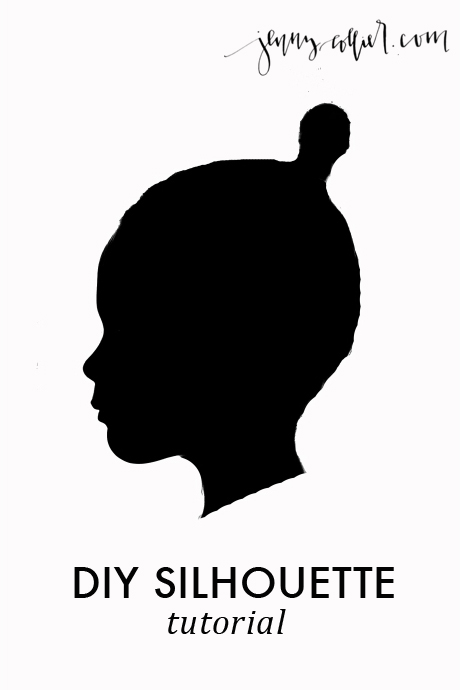
Step No. 01: Take a photo of your child standing in front of a window. Backlight if you are using a digital SLR. If you’re using an iPhone simply tap the window to illuminate and it should darken your subject to create more of a silhouette.
Step No. 02: Pull your image into Photoshop.
.png)
Step No. 03: Pull up your levels. I hit Command+L on my Macbook (you can also get to this by going to Image - Adjustments - Levels). I pulled the level to the right until I started seeing some serious contrast in the image.
.jpg)

Step No. 04: Select the magic wand tool from the tool bar and start selecting areas that you want to remove. Instead of the whole scene I try to select just the areas around the head that I want eliminated from the background. Make sure your background layer isn’t locked and press “delete” to remove the image from your background.
I continue to do this until I get nearly all of the background removed from around her head.
Step No. 05: Turn your image to black and white by clicking Image - Adjustments - Black & White.
Step No. 06: Then select your eraser tool from your sidebar. Continue to erase all of the background around the head…and in this case I erased her shirt all the way up ot her neck.
Step No. 07: Add a layer of white so that you can truly see if you’ve removed all background elements. Continue to erase.
Step No. 08: Now your silhouette is finished! Create a new Photoshop file sized 8.5×11.


.jpg)


.jpg)


by Jenny Collier